On this page
Identify the adapter and Windows version
Open Device Manager and expand Bluetooth. Record the adapter name. For a built-in radio, also record the exact PC model. For a USB dongle, use the model on its label or packaging. The PC’s Windows version and system type help you choose the right download.
If the Bluetooth switch is missing
Check Airplane mode and restart the PC. For an external adapter, reconnect it. Open Device Manager and see whether a Bluetooth adapter is listed.
- If the adapter is listed, check whether it’s disabled or shows a warning. If you’re authorized to enable it, use Enable device. Record any error shown under Device status.
- If the adapter isn’t listed, check the PC or dongle model with its manufacturer and follow the applicable support instructions. A missing switch alone doesn’t identify the cause.
Choose an official driver source
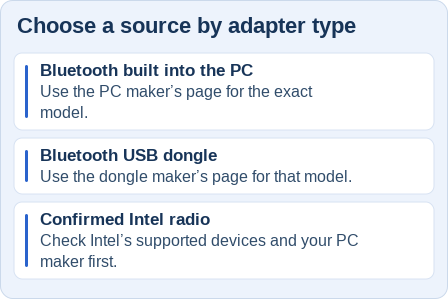
If Windows Update offers a matching Bluetooth driver, check its applicability before installing. If you need a manufacturer package, search by the exact model. For a PC with a combined Wi-Fi and Bluetooth card, pick the Bluetooth download listed for that configuration.
Use Intel’s download only if you’ve identified an Intel adapter and the official supported-device list includes your model and Windows version. On a manufacturer-built PC, check the PC maker’s package first.
Test pairing after the driver change
Follow the manufacturer’s installation instructions and restart if prompted. On Windows 11, check Settings → Bluetooth & devices, turn Bluetooth on, and try pairing the device you wanted to use. If Bluetooth is on and other devices pair normally, check the accessory’s pairing instructions before changing the PC driver again.