On this page
Open the device’s Details tab
Look under the expected device category or Other devices if Windows could not identify it. Pick the specific device entry you are investigating.
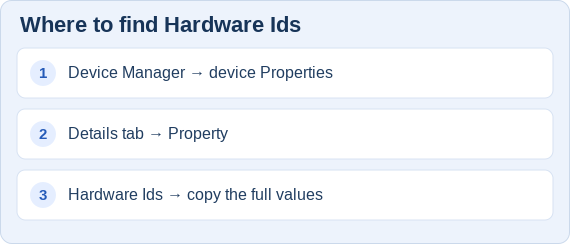
- Right-click Start and open Device Manager.
- Right-click the device and choose Properties.
- Open Details. Under Property, choose Hardware Ids.
Record the values in order
Windows can show several IDs for the same device. Keep the full strings and their order, including any subsystem or revision identifiers. A hardware ID identifies what the device reports to Windows. Check the package and its supported Windows version on the manufacturer’s site before installing.
Use the most specific ID together with the PC model when several similar adapters appear. A generic compatible ID by itself may match more than one package.
If the list is empty or the device is absent
Check that the device is connected and appears in Device Manager. If the entry shows a warning, note its status message and code. Also keep the exact PC or device model as a second way to identify it.