On this page
Record model, connection, and required function
Use the full model on the device label. Note whether it connects over USB or the network, and whether you need to print, scan, or both. Check your Windows version and system type before choosing a package.
Choose Windows or the manufacturer
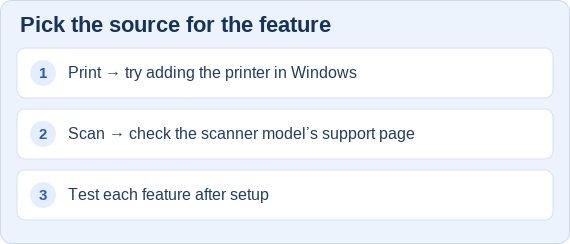
Try adding the printer in Windows. If Windows installs a driver but the feature you need is missing, check the manufacturer’s model page for the correct driver or scanning software. A print driver and scan software may be separate.
On Windows 11, start in Settings → Bluetooth & devices → Printers & scanners. On Windows 10, use Settings → Devices → Printers & scanners. For a standalone scanner, use its own model and follow the maker’s setup instructions.
Test the function you need
Print a test page and, if applicable, start a test scan. If the printer appears offline or jobs accumulate, check the connection and print queue before changing the driver again.