On this page
Check power and how the printer connects
Look at the printer’s own display or lights first. Clear any paper or supply issue it reports. For a USB printer, check the cable and reconnect it securely. For a wireless printer, confirm the PC and printer are on the intended network.
On Windows 11, open Settings → Bluetooth & devices → Printers & scanners. Check whether the printer is listed.
If the printer appears but won’t print
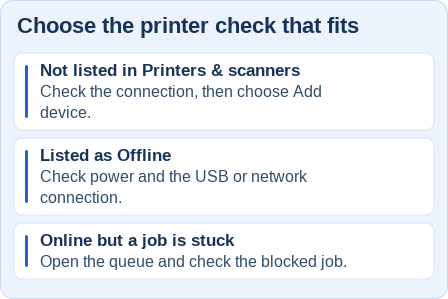
Select the correct printer and open its print queue. Check whether it’s offline or a job is stuck.
- If it’s offline, check that it’s awake and connected, then restart the printer. Wait for it to reconnect before checking its status again.
- If a job is blocking the queue, cancel it only if you can send it again. Check with the owner before clearing jobs from a shared printer.
- Run the printer troubleshooter in Get Help if Windows still shows it offline or jobs stay stuck. Follow Microsoft’s print spooler instructions only if the earlier checks haven’t cleared the queue.
If Windows can’t find the printer
In Printers & scanners, select Add device and let Windows look for the printer. If the printer still doesn’t appear, confirm the network or USB connection and follow Microsoft’s printer detection instructions. Use the exact manufacturer package if Windows reports a driver problem or the feature you need is missing.
Print a test page, then retry the original job
Print a test page from the printer’s Windows settings. If that works, retry the document from the original app and confirm the correct printer is selected there. If the test page fails, save the Windows status, connection type, and exact printer model for support.