On this page
Confirm which installer returned 1603
Record the publisher, app and package version, launch method and full error. If you launched an EXE, use its publisher’s documentation to confirm whether Windows Installer failed inside it.
For a work or school deployment, send these details to IT so they can compare them with the managed installation log.
Check the existing app and target folder
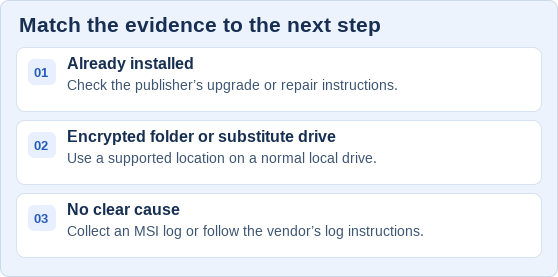
In Windows 11, check Settings → Apps → Installed apps. In Windows 10, use Apps & features. If the app is already present, follow the publisher’s supported repair or upgrade path.
Microsoft lists encrypted destinations, substitute drives and missing SYSTEM access among documented causes. If those conditions match the failure, use a supported installation location or have IT check permissions on the specific target folder.
Collect a log for an actual MSI file
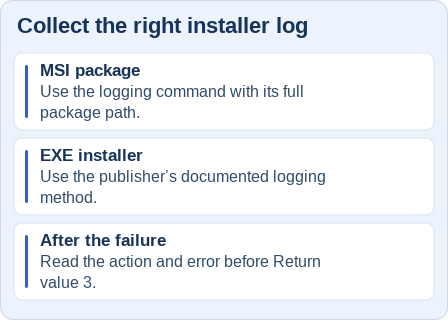
The command below starts another installation attempt. Use it only for a trusted MSI you intend to install, and replace the example path with its full location. It writes a verbose log to your temporary files folder.
If you have an EXE installer, use its publisher’s supported logging method. Keep the time of the attempt so you can match the log to the error.
msiexec /i "C:\Path\app.msi" /L*V "%TEMP%\install-1603.log"Find Return value 3 in the log and look above it for the failing action or a more specific message. If you share the log with support, send only the relevant lines and remove private information.
Find the failing action and verify the app
In the log, search for Return value 3 and examine the preceding action and error near the failure time. The marker locates an installation failure, while the surrounding entries provide context.
After the applicable correction, verify that the intended app version is present and opens. If it still fails, share the error and relevant log lines privately with the publisher or IT, removing unrelated personal information.