On this page
Confirm the code came from Windows Update
Open Update history and look for the failed update. In Windows 11, open Settings → Windows Update → Update history. In Windows 10, open Settings → Update & Security → Windows Update → View update history. Record the KB number if shown, the full error, and when it happened.
If the error appeared when opening a folder, installing an app, or activating Windows, use guidance for that operation. An access denial can have different causes in each context.
Run the applicable update checks
On a personal PC, save your work, restart, then run Microsoft’s Windows Update troubleshooter. On Windows 11, start with Get Help. Use Microsoft’s version-specific Settings instructions if Get Help is unavailable or you use Windows 10.
On a work or school PC, send IT the failed update, exact error, and time. The update may be controlled by organization policy or need access to a protected resource.
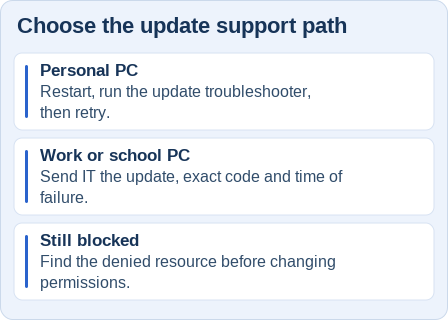
Identify the denied resource before changing permissions
If the same error returns, give Microsoft support or IT the failed KB, time, and Windows build. Windows servicing logs such as CBS.log can help narrow the failure to a specific file, folder, or registry entry. Use Microsoft’s guide for follow-up that matches the denied resource.
Avoid changing permissions across the whole drive or registry. That can affect Windows components beyond the failed update.
Check the same update again
After the applicable check, retry the original update and reopen Update history. Confirm that the same KB installed successfully. If Windows reports a different code, record the new message before choosing the next step.