WINDOWS ERROR GUIDANCE

Windows Update error 0x80070422

If 0x80070422 appeared in Windows Update, check whether the update service can start. A service marked Stopped can be idle. Check its Startup type and any start error before making changes.

On this page
  1. Check where 0x80070422 appeared
  2. Read the Windows Update service settings
  3. Check for updates again

Check where 0x80070422 appeared

Record whether it appeared while checking for updates or installing one. If you saw it in Microsoft Store or another app, start with guidance for that operation.

Read the Windows Update service settings

On a personal PC, press Windows key + R, enter services.msc, and open Properties for Windows Update. Record the Startup type and Service status.

If Windows Update is stopped and Start is available, select it and record any error. If the service is disabled or fails to start, run Microsoft’s Windows Update troubleshooter. On a work or school PC, give IT the status and exact error so they can check the update policy.
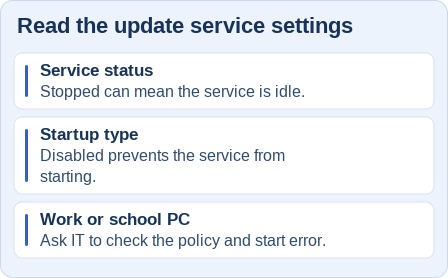
Read the update service settings. Service status. Stopped can mean the service is idle. Startup type. Disabled prevents the service from starting. Work or school PC. Ask IT to check the policy and start error.
Service status and Startup type answer different questions.Enlarge

Check for updates again

Reopen Windows Update and select Check for updates. If the code returns, keep the service status, Startup type, any start error, and the Windows build together for support.

References

MYTURBOPC

About this page preview

This local preview draws on Microsoft or manufacturer documentation. The illustrated examples show where to look or how to choose a step.

The procedure and individual driver packages have not been tested for this preview.