On this page
Record the original startup settings
Use an administrator account on a PC that can reach the normal Windows desktop. Save your work and note which startup apps and non-Microsoft services are already disabled. On a work or school PC, coordinate with IT before changing startup settings.
Disable background items for the test
Open System Configuration by searching for it from Start.
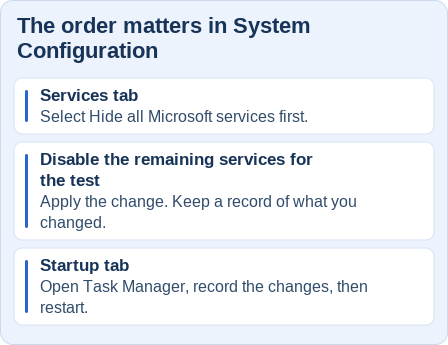
- Open Services. Select Hide all Microsoft services before choosing Disable all. Select Apply.
- Open Startup, then select Open Task Manager. Disable enabled startup apps for the test and keep a list of the ones you change.
- Close Task Manager. In System Configuration, select OK and restart Windows.
Repeat the task and narrow down the conflict
Try the exact app or operation that was failing. If the problem disappears, re-enable groups of the items you disabled and restart between tests. Narrow the group when the problem returns, so you can identify the app or service involved.
If the problem still occurs in the clean boot, restore your startup settings and return to the guide for the original error or app.
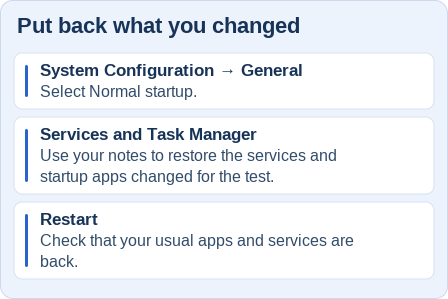
Restore your usual startup settings
Open System Configuration → General and select Normal startup. Use Microsoft’s reset instructions and your notes to restore the services and startup apps you changed. Preserve any settings that were intentionally disabled before the test. Restart and verify your usual setup.