On this page
Save your work and prepare to sign in
Safe Mode starts Windows with a limited set of drivers and services so you can see whether a problem still happens there. Know your Microsoft or local account password. PIN and biometric sign-in options may be unavailable.
If the device is encrypted, have the BitLocker recovery key available before you begin. For a managed PC, use your IT team’s recovery instructions.
Open Startup Settings from Windows Recovery Environment
From a usable Windows 11 desktop, open Settings → System → Recovery and choose Restart now beside Advanced startup. At the sign-in screen, hold Shift while selecting Power → Restart.
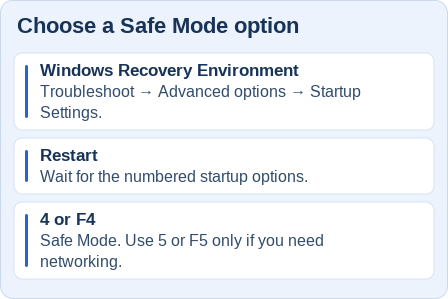
- In Windows Recovery Environment, select Troubleshoot → Advanced options → Startup Settings → Restart.
- When Startup Settings appears, press 4 or F4 for Safe Mode. If the test requires network access, choose 5 or F5 for Safe Mode with Networking.
- If Windows asks for BitLocker recovery, enter the authorized recovery key.
Test the issue and return to normal startup
Try the same action that normally fails and record what happens. If it works in Safe Mode, use that result to narrow your search to what changes between Safe Mode and normal startup. Restart normally when you’re done.
If Windows keeps starting in Safe Mode, Microsoft’s Startup Settings guide explains how to clear Safe boot in System Configuration. If Windows cannot reach Startup Settings or you lack the recovery key, use the PC maker or IT recovery route.