On this page
Confirm Code 28
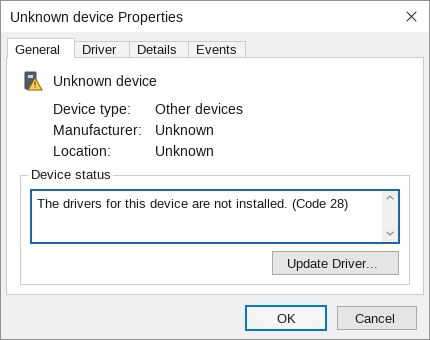
Open Device Manager, right-click the affected device and choose Properties. On the General tab, check Device status for Code 28.
Identify the device
Record the device name and its full hardware IDs. Windows uses these IDs to match devices with driver packages, and a device can have more than one.
- In the device’s Properties, open the Details tab.
- Under Property, select Hardware Ids. Record the property name and the full strings shown.
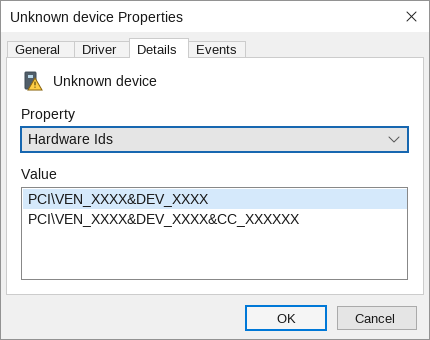
Find hardware IDs in Windows if the device name is missing or unclear.
Check your Windows version and system type
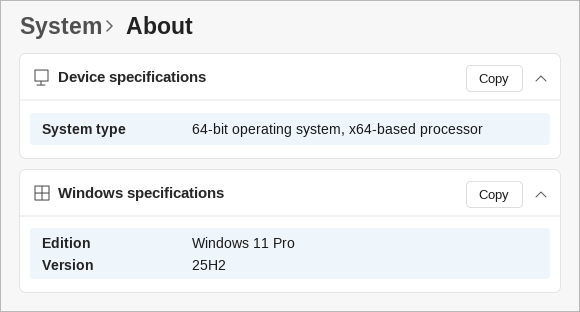
Go to Settings → System → About. Record the edition and version under Windows specifications (sometimes called Windows info), and the system type shown under Device specifications.
Prepare a driver source
Note your PC’s make and model and identify an official support site for the affected device. If you’re unsure which device it is, check with the manufacturer before choosing a package.
Any package you use must match your device, Windows version and system type. Windows can attempt reinstallation during the scan without a separate vendor download.
Start with the PC maker if the adapter came with the computer, or the adapter maker if you added it separately. If the affected PC is offline, download the backup driver on another computer and transfer it by USB.
Find official network driver sourcesReinstall the driver
Work on the device that reported Code 28. Keep the official driver source handy in case Windows asks for a path.
1. Uninstall the affected device
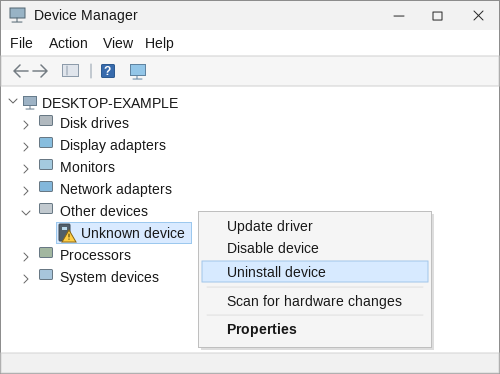
Right-click that device in Device Manager and select Uninstall device. If Windows offers to delete its driver software, leave the option clear for this first attempt so Windows can reuse any local package.
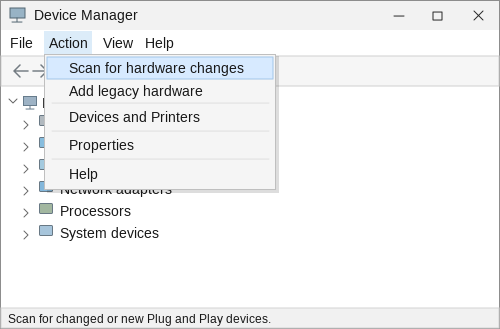
2. Scan for hardware changes
After the device is uninstalled, select Action → Scan for hardware changes. Windows will look for the device and attempt to reinstall it.
If Windows asks for a driver path: Give it the location of an available matching driver. If the device reappears with Code 28, get a matching package from the hardware vendor. Use the reinstall a driver safely guide for the manual fallback.
Check the result
Open the device’s Properties and check Device status again. If the code has cleared, repeat the actual task: reconnect to Wi-Fi, test audio, or use the affected peripheral. Record the result so you know whether the original problem is resolved.
If Code 28 or the original problem persists, confirm the device identity and any package you used. Ask the manufacturer for help if you’re still unsure how to proceed.