On this page
Check which .NET version the app needs
Read the app publisher’s exact requirement. If it asks for .NET Framework 3.5, open Settings → System → About and record your Windows version and build.
Use the installation path for your Windows release
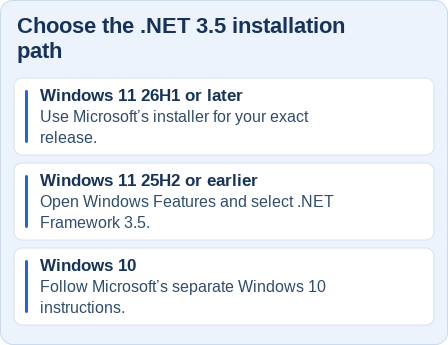
On Windows 11 26H1 (build 28000) and later, use Microsoft’s .NET Framework 3.5 page to find the standalone installer for your exact release. The installer works with the version Microsoft lists for it.
On Windows 11 25H2 and earlier, search Start for Turn Windows features on or off. Select .NET Framework 3.5, choose OK, and follow the prompts. For Windows 10, follow the separate Windows 10 instructions. If your PC is managed, ask IT for an approved source.
If Windows reports 0x800f081f
Record the Windows build and whether the error appeared while enabling a feature. On 26H1 and later, confirm you chose the standalone installer for that release. If the feature failed on an earlier release, check the repair source.
Open the app again
Restart if prompted and launch the same app. If it still asks for a runtime, record the new message and compare it with the publisher’s requirements.