On this page
Prepare an administrator Command Prompt
Save your work. Search Start for Command Prompt and select Run as administrator. If a work or school account blocks that choice, ask IT to run the checks.
Use this procedure when protected Windows files or the Windows component store may be damaged. Keep the original symptom or error so you can test it again after the scan.
Repair the Windows component store
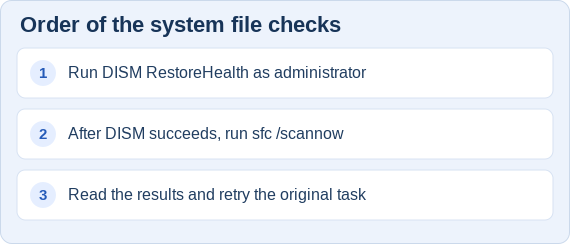
Run the command below. Wait for it to finish and read the result.
DISM.exe /Online /Cleanup-Image /RestoreHealthWait for DISM to finish. If it reports success, continue to SFC. If it says the source files could not be found, use the repair-source guide instead of repeating the same command.
Check protected system files
After DISM succeeds, run System File Checker from the administrator Command Prompt.
sfc /scannowLeave Command Prompt open until verification reaches 100%, then record the message Windows shows.
Read the result and retry the original task
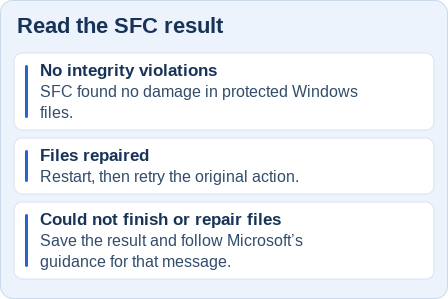
If SFC reports no integrity violations, it did not find damage in protected Windows files. Return to the original symptom and use the guide for the task that failed.
If SFC repaired files, restart and retry the same task. If it couldn’t complete the scan or repair some files, save the exact result and use Microsoft’s guidance for that message. It explains how to investigate further and, for unrepaired files, how to review the SFC log details.