On this page
Record the device and current driver
Open Device Manager and expand the category for the device, such as Display adapters or Network adapters. Open Properties → Driver and note the provider, version, and date. Check your Windows version and system type before choosing a download.
If the device worked until a recent driver update, check whether you can roll back that driver first.
Check Windows Update first
Windows normally installs recommended drivers automatically. Optional updates can include drivers you can choose for a specific device.
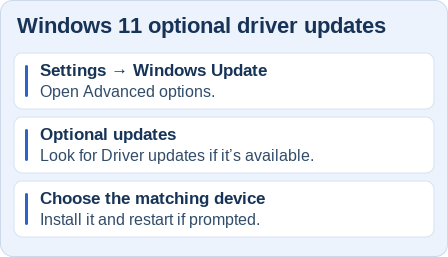
- On Windows 11, open Settings → Windows Update. Select Check for updates.
- To check optional drivers, open Advanced options → Optional updates. If Driver updates is available, look for the one that matches the device you’re working on.
- Install the matching update and restart if Windows prompts you.
Install a matching manufacturer package
If Windows Update doesn’t offer the driver you need, open the official support page for your PC or device. Confirm the exact model, Windows version, and system type. A similar product name doesn’t establish a match.
- If the maker supplies its own installer, follow that package’s instructions.
- If the maker supplies a folder of driver files and tells you to install them through Device Manager, extract the files if needed. Right-click the device, select Update driver, choose Browse my computer for drivers, and point Windows to that folder.
- Read the result. If Windows can’t find a compatible driver in the folder, check the package and device model before trying again.
Check the driver and repeat the original task
Reopen the device’s Properties → Driver to see the installed version. Then test what you were trying to do, such as reconnecting to Wi-Fi or using an external monitor. If a warning remains, record the code under Device status. If the device got worse after the update, check whether rollback is available.