On this page
FIRST, CHECK THE FIT
Before you begin
Rollback is worth considering when a specific device develops a problem after its driver changes. The timing is a clue; it does not prove the driver caused the symptom.
Know the device
Match the affected hardware to its entry in Device Manager. Keep its current driver version and date in your notes.
Have the right access
Microsoft requires administrator permissions. On a managed work or school PC, involve your IT administrator.
Prepare your way back
Save open work. For a network adapter, keep an official driver and a transfer route available before considering removal.
Documentation: Microsoft’s driver guidance · network recovery preparation
This guide assumes the desktop and Device Manager are accessible. If startup is blocked, use your PC maker’s recovery support before changing drivers.
THE MANUAL ROUTE
Follow the rollback path
Read through the steps first. These controls only track what you have read.
Microsoft documents this Device Manager path for Windows 11. Device names and available options depend on your PC.
- 01
Find the affected device
Right-click Start and open Device Manager. Expand the relevant category and identify the device whose driver changed.
Start › Device Manager › Device category - 02
Open its driver details
Right-click that device, choose Properties, then the Driver tab. Note the provider, version and date before changing anything.
Device › Properties › Driver - 03
Check “Roll Back Driver”
If available, select Roll Back Driver, choose the reason when prompted, and confirm with Yes. Restart if prompted.
What do you see on your PC?
Check the actual button in Device Manager. This page cannot detect whether a previous driver is available.
- 04
Check the device and the original task
Reopen the device’s Driver tab and record the version now shown. Repeat the task that exposed the problem and note exactly what changed.
Choose your next step
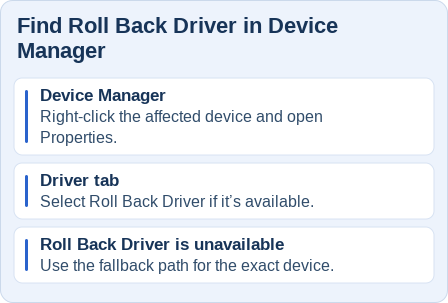
UI path: Microsoft: Rollback the driver . No rollback or repair is performed by this page.
AFTER THE CHANGE
Check what changed
Choose what you observed after testing the same task. Your selection stays on this page and does not confirm a repair.
Start with what you can observe
Check the original task, device behavior and driver version. A completed dialog alone is not an outcome test.

LEAVE YOURSELF A TRAIL
A few useful notes beat another guess.
Device. Version. Change. Result. Keep those details together if you need help.
Common questions
Does this remove a Windows update?
No. This guide concerns one device driver. Removing a Windows update, using System Restore and changing firmware are separate procedures.
Will this definitely fix the problem?
No. A recent driver change can help narrow the investigation, but the symptom may have another cause. Check the actual outcome and retain your notes.
Can ASR Pro restore a missing previous driver?
That capability has not been established here. Do not substitute a software offer for a compatible manufacturer package or the rollback prerequisites.
DOCUMENTATION & LIMITS
Sources & review
Documentation consulted October 29, 2026. This draft has not had independent technical review or a hands-on Windows rollback test.
- Microsoft · Device Manager driver procedures Windows 11/10 path, permissions and official-source guidance.
- Intel · Previous graphics driver guidance Graphics-specific exceptions and DCH caution; not universal device advice.
- Microsoft · Wi-Fi connection troubleshooting Backup-driver and offline preparation before network-device removal.
- Microsoft · Windows 10 support lifecycle Lifecycle context; individual extended-support eligibility not established.