On this page
Identify the audio device and connection
Check the selected output and mute setting first. If the correct output is missing or still silent, identify the audio hardware before choosing a driver.
- Open Settings → System → Sound and select the output you want to use.
- Expand Sound, video and game controllers in Device Manager and record the controller name. Record the PC model or the model of the USB device.
- In Settings → System → About, record the Windows version and System type.
Choose the official source
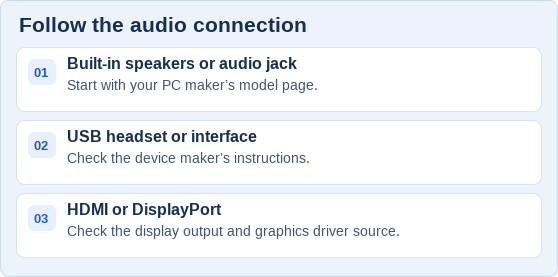
For built-in audio, choose the driver listed for your exact PC model. If Device Manager shows Realtek on a laptop, use the laptop maker’s model page to find the right package.
For USB audio, check the maker’s instructions to see if your model needs a separate driver. If the speakers are on a display connected over HDMI or DisplayPort, look for the display in Windows sound settings and check the matching graphics driver source.
Official download pages
- Dell Drivers & Downloads
For a Dell PC, identify its model or use the Service Tag on Dell’s site and select the applicable driver category.
- Lenovo PC Support
For a Lenovo PC, select the exact product before opening Drivers & Software.
Match the package and follow its instructions
Check Windows Update for a driver. If you need a manufacturer download, match the exact model, Windows version and system type, then follow the package’s instructions. If the manufacturer gives you unpacked driver files and directs you to Device Manager, select Update driver → Browse my computer for drivers.
If sound stopped working right after a driver update, check Roll Back Driver under the device’s Properties → Driver before trying another package.
Test the audio you actually use
Test sound through the output you actually use. If a microphone is part of the problem, test the intended microphone in the affected app too.
If sound is still silent, reselect the intended output and check the volume in Windows and the affected app. If the issue remains unresolved, report the device model and driver version to the appropriate manufacturer’s support source.
- To find the installed driver version, open the device’s Properties in Device Manager and select the Driver tab.