On this page
Identify your graphics adapter
If Windows lists Microsoft Basic Display Adapter in place of a specific model, identify the GPU from the PC’s specifications or verified hardware details before downloading a package.
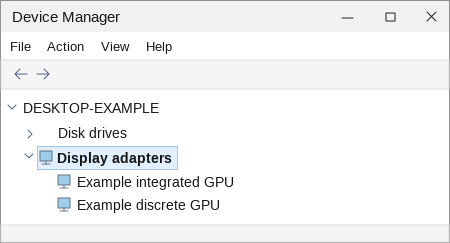
- In Device Manager, expand Display adapters and record each model name. A laptop can list both integrated and separate graphics adapters.
- For a laptop or prebuilt desktop, record the exact PC model. In Settings → System → About, note the Windows version and System type.
Choose between the PC maker and GPU maker
Start with the PC maker for a laptop or prebuilt system, especially if Windows lists two adapters. Look up the exact PC model and follow its instructions for the applicable graphics drivers.
For a card installed separately in a desktop, use the official finder for the supported NVIDIA, AMD or Intel model you identified.
Official download pages
- NVIDIA driver downloads
Select your exact NVIDIA product and Windows version.
- AMD drivers and support
Select your Radeon product and supported Windows version.
- Intel Download Center
Choose Graphics and confirm the exact Intel model and operating system.
Check compatibility before installing
Check Windows Update, or use a matching package from the official source. Confirm that it lists your GPU and supports your Windows version and system type. Follow the package’s installation instructions.
If the issue began immediately after a driver update, open the affected adapter’s Properties → Driver and check whether Roll Back Driver is available.
Check the adapter and display
Open the affected adapter’s Properties in Device Manager and check Device status. Then test the monitor or app that originally had the problem. If Windows reports Code 43 after installation, record the full Device status message and follow the dedicated guide below.