On this page
Confirm Code 43 in Device Manager
Record the device name and exact code. If you see Code 28, follow the missing-driver guide.
- Right-click Start and select Device Manager.
- Find the affected device, right-click it, and select Properties.
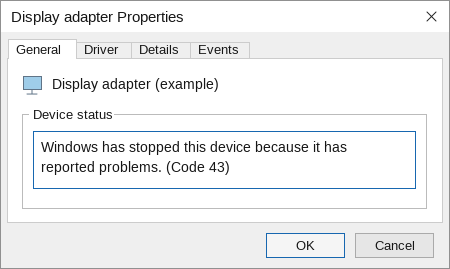
- On the General tab, read Device status and confirm that it shows Code 43.
Choose the step that matches what changed
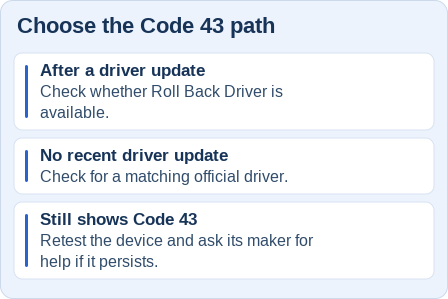
If it started after a driver update, open Properties → Driver and check whether Roll Back Driver is available. Otherwise, check for a matching driver from Windows Update or the manufacturer’s support site.
For graphics devices, driver and hardware faults are both possible. For USB accessories, follow the maker’s connection checks for that model before choosing a package.
Reinstall the affected graphics device if needed
Have a matching manufacturer package ready. In Device Manager, right-click the affected graphics device and select Uninstall device. Select the computer name, then choose Action → Scan for hardware changes. If Windows needs a driver, follow the manufacturer’s instructions for the matching package.
Check Device status and test the device
Check whether Code 43 cleared and repeat the task that failed. If the code returns, give the manufacturer the device model, Windows build, driver version, and the result of the test.