On this page
Record both codes and the upgrade target
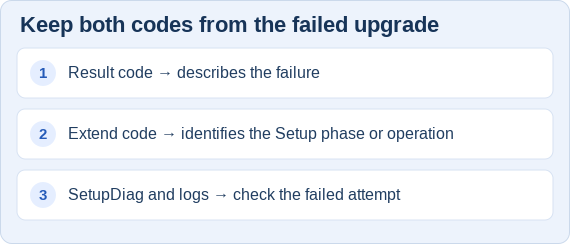
Write down 0xc1900101, any second value such as 0x30018, and the Windows version you were upgrading to. The second value helps identify the Setup phase or operation. Note recent driver changes and connected devices.
Read the SetupDiag result before changing drivers
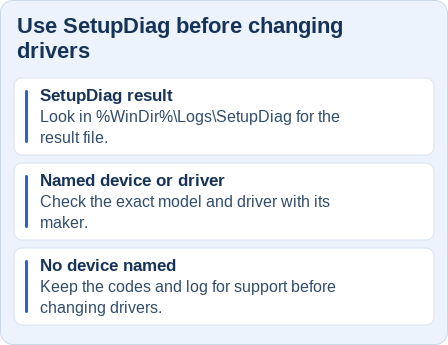
In File Explorer, look for SetupDiagResults.xml under %WinDir%\Logs\SetupDiag. Windows Setup can create it after an unsuccessful upgrade. If it’s missing, follow the diagnostics guide to collect the Setup logs and run Microsoft’s tool.
If the result names a driver or device, check that exact model with the manufacturer. If it doesn’t, keep the codes and log for support before removing drivers.
Verify the upgrade after a targeted retry
Back up important files before retrying. If applicable, disconnect nonessential hardware or make the specific driver change the evidence supports. For a managed upgrade, follow IT’s process.
After the upgrade, confirm the intended Windows version and test the affected device. If it rolls back again, record the new codes and keep the new SetupDiag result.