
FIRST, MAKE SURE THE CONTEXT MATCHES
What does 0x80070002 mean?
Microsoft maps 0x80070002 to ERROR_FILE_NOT_FOUND. During Windows Update, keep the code together with the failed update and its full message. The code alone does not identify which file is involved or establish the cause.
This guide covers the code when you’re downloading or installing an update through Windows Update. If it appeared in Microsoft Store, an application installer, backup software or Windows Setup, identify that operation first; it needs its own troubleshooting path.
A LITTLE CONTEXT GOES A LONG WAY
Before you start
Keep a note of the failure before changing anything. These details help you compare the next attempt with the original problem.
Record the update name, any KB number shown, and the complete error message.
Open Settings → System → About and look under Windows specifications. Find your version (Microsoft, opens in new tab)
Note when the message appeared and whether it happens with the same update again.
This changes the paths below; it doesn’t detect your PC.
Settings → Windows Update → Update history
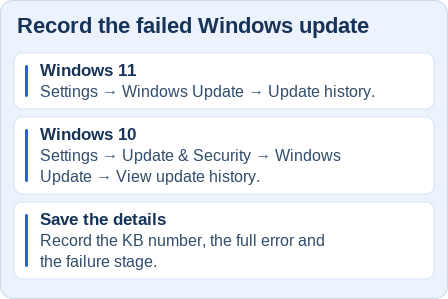
Save your work and back up important files before troubleshooting. For a work or school device, check with its administrator before changing update configuration.
CHECK THE CURRENT STATUS
Is this a known issue for your update?
Use your exact Windows release and update number to check Microsoft’s release-health information. Follow any instructions that match those details; a report for a different build is not enough.
ONE STEP, THEN CHECK THE RESULT
Work through the next steps
Microsoft’s consumer guidance includes restarting, running the update troubleshooter and checking storage. Select the branch that matches what you see, then retry and record the result. Windows Update guidance (Microsoft, opens in new tab)
Restart, then try the update again
After saving your work, use Start → Power → Restart. When you’re back at the desktop, reopen Windows Update and check for updates.
If Windows is actively applying an update, allow that process to finish rather than forcing the PC off.
Checkpoint Does the same update install, or does the full error message return?
Run the Windows Update troubleshooter
Start with the Windows Update troubleshooter in Get Help. If that doesn’t help, use the Settings route below.
Open Microsoft’s troubleshooter instructions (Microsoft, opens in new tab)Find the Settings route for Windows 11
Settings → System → Troubleshoot → Other troubleshooters
Select Windows Update and its Run option, then follow the prompts. Labels can vary by build.
The troubleshooter’s result is a useful clue, not a guarantee that the failed update will now install.
Checkpoint Record what the troubleshooter reports, restart, and recheck Windows Update.
Check storage if Windows reports low space
Review Settings → System → Storage. If Windows asks for more space, follow Microsoft’s storage guidance and review what will be removed before confirming a cleanup.
Free up drive space in Windows (Microsoft, opens in new tab)Removing a previous Windows installation removes the option to return to it. Don’t select it just to follow a generic cleanup checklist.
Checkpoint Use the update’s actual storage message; avoid assuming one free-space figure fits every update.
Choose a documented repair branch if needed
If the update still fails and the investigation points to Windows system-file or servicing problems, use Microsoft’s DISM and System File Checker guidance. It documents the order, administrator requirement and repair-source conditions.
Windows system-file checksRun DISM and SFC, then check their resultsKeep this as a conditional branch. A matching error code alone does not establish that files are corrupt, and source errors need their own applicable source/version investigation.
Checkpoint Keep the exact command result or new error. A successful file check still needs an update retry.
The checkboxes track your place in this guide. They don’t run a repair or verify a result.
LET THE RESULT GUIDE THE NEXT MOVE
What happened on the next attempt?
Recheck the same update after the applicable step. Choose the result you actually observed.
This page doesn’t detect your update status. Select an outcome after checking it on your PC.
Copy a blank checklist to your own notes. Nothing is submitted.
SOFTWARE OPTION
Considering a PC utility?
Explore Advanced System Repair Pro and check whether its verified capabilities fit your situation.
Third-party software · Affiliate offerA FEW THINGS WORTH CLEARING UP
Common questions
Does 0x80070002 always mean the same problem?
No. The code’s meaning is a reference point, but the operation, complete message and affected files determine the investigation. This page is scoped to Windows Update.
Should I download a missing DLL?
A code alone doesn’t identify a particular DLL or an appropriate replacement. Follow the applicable Microsoft or application-vendor procedure rather than choosing a file from the number alone.
Will a PC repair utility fix this update error?
This guide doesn’t establish that a third-party utility resolves this failure. Check its demonstrated capabilities, Windows requirements and plan terms before deciding whether it fits.
What if this is a work or school PC?
Keep the update details and contact the device administrator before changing managed services, policy or update sources. The administrator may need to investigate a different update delivery path.
WHERE THIS GUIDANCE COMES FROM
Sources & review status
Microsoft documentation was consulted on October 28, 2026. The error-code reference supports the meaning only; server-specific repair instructions are not applied to this client guide.
- Microsoft SupportTroubleshoot problems updating Windows (opens in new tab)
- Microsoft SupportWindows Update Troubleshooter (opens in new tab)
- Microsoft LearnWindows release health (opens in new tab)
- Microsoft SupportFind information about your Windows device (opens in new tab)
- Microsoft SupportFree up drive space in Windows (opens in new tab)
- Microsoft SupportUse the System File Checker tool (opens in new tab)
- Microsoft Learn · Windows ServerWindows Update error-code reference (opens in new tab)
- Microsoft SupportWindows 10 end of support (opens in new tab)
No hands-on Windows repair or installer test has been performed for this page. Independent review and version-specific testing remain open.
A DIFFERENT PROBLEM?
Find your next starting point.
Browse Windows errors, devices and procedures.