On this page
Identify the device and prepare a way back
In Device Manager, record the exact device name and the version on its Driver tab. Save open work. If this is your only network adapter, save the official driver before uninstalling it or use another computer to download it. If the failure started right after an update, try the rollback route when it’s available.
Remove the affected device and restart
If your device maker gives a model-specific reinstall procedure, use it. Follow this Device Manager route for a device covered by Microsoft’s general procedure.
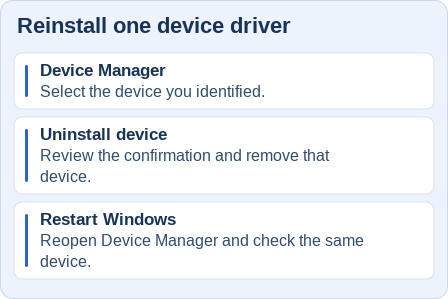
- Right-click Start and open Device Manager. Expand the device’s category and confirm the name.
- Right-click that device and choose Uninstall device. Review the confirmation and select Uninstall.
- Restart Windows. After sign-in, reopen Device Manager to see whether Windows detected the device and installed a driver.
If the device doesn’t come back
Use the matching package you saved and follow the manufacturer’s instructions. For a printer that needs to be added again, use the printer setup route. If Device Manager shows Code 28, record the device name and use the missing-driver guide to choose the next step.
Verify the device works again
Check Device status and the installed driver version. Repeat the original task, such as joining the same Wi-Fi network or using the same display. If the device still doesn’t work, keep the model, driver version, and exact status for the device maker or IT team.