On this page
Check the app’s runtime requirement
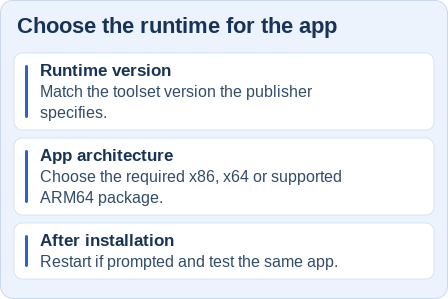
Record the app version, its architecture and any named DLL. Match these to the publisher’s requirements. Windows system type describes the PC, while the app determines whether an x86, x64 or other supported package is needed.
Older apps can require an older runtime alongside a current one. Keep the installed packages that other apps depend on.
Install or repair the matching Microsoft package
Open Microsoft’s supported downloads page and find the required toolset version and architecture. Run the matching installer and follow its prompts. If it offers Repair for the installed package, use that option when the publisher’s instructions call for it.
Restart if prompted, then test the app. If runtime installation itself fails, save its full error and installer logs. Microsoft’s troubleshooting page explains how to find the failure details.
Relaunch the original app
Check whether its startup or missing-file message cleared. If the required runtime is already present and the app still fails, give its publisher the exact error, app version and runtime package you checked.