WINDOWS ERROR GUIDANCE

Windows Update error 0x80073712

Error 0x80073712 means Windows found corruption in the component store. Run DISM first, then System File Checker. Read each result before retrying the original update.

On this page
  1. Confirm the failed update and code
  2. Run DISM before System File Checker
  3. Check the original update again

Confirm the failed update and code

Record the failed KB and time in Update history. Microsoft names this code ERROR_SXS_COMPONENT_STORE_CORRUPT. If the error appeared outside Windows Update, keep the original Windows operation in your notes when looking for help.

Run DISM before System File Checker

Open Command Prompt as an administrator. DISM repairs the component store. After it succeeds, SFC checks protected Windows files. If DISM can’t find source files, follow the missing repair source guide before continuing.
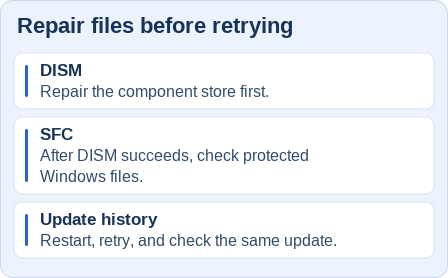
Repair files before retrying. DISM. Repair the component store first. SFC. After DISM succeeds, check protected Windows files. Update history. Restart, retry, and check the same update.
Read each repair result before moving on.Enlarge

Check the original update again

Restart and retry the same update. Check its entry in Update history. If the same code returns, keep the KB, Windows build, and failure time so IT or Microsoft support can find the relevant CBS.log entries.

References

MYTURBOPC

About this page preview

This local preview draws on Microsoft or manufacturer documentation. The illustrated examples show where to look or how to choose a step.

The procedure and individual driver packages have not been tested for this preview.