On this page
Check where Windows is sending sound
If you switched from a monitor, dock, Bluetooth headset, or USB device, Windows may still be sending audio to the previous output.
- Open Settings → System → Sound. Under Output, select the speakers or headphones you want to hear.
- Check the volume and mute controls on both the PC and the speakers or headset. For a wired device, make sure it’s connected to the expected port.
- Play a short test sound or audio you know works.
Find out whether one app or every app is silent
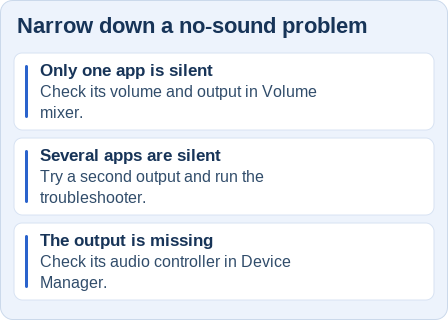
Try sound in a second app. If it works there, check the affected app’s volume and output selection. On Windows 11, you can also check Volume mixer under Settings → System → Sound to see whether the app is muted.
If multiple apps are silent, try a second output if you have one. Run the Windows audio troubleshooter in Get Help. If the correct output is present but still silent, check Microsoft’s guidance on audio enhancements before replacing a driver.
Check the driver when an output is missing
In Device Manager, expand Sound, video and game controllers and check the affected controller’s status. If the problem followed a driver update, check Roll Back Driver. If a replacement is needed, choose the source for the affected device. Built-in speakers, USB audio, and sound over HDMI or DisplayPort can use different driver packages.
Test the same output in the same app
Return to the affected app and play the same audio through the intended speakers or headphones. If sound works in other apps but still fails here, record the app and its selected output before asking for support. If the output is missing everywhere, include the device model and any Device Manager status.