On this page
Choose the symptom you see
Check that Airplane mode is off and Wi-Fi is on. Then pick the branch that matches what you see.
If the Wi-Fi option is missing
Check whether Windows can see the wireless adapter. If this started after an update, note the update date and the driver version before changing anything.
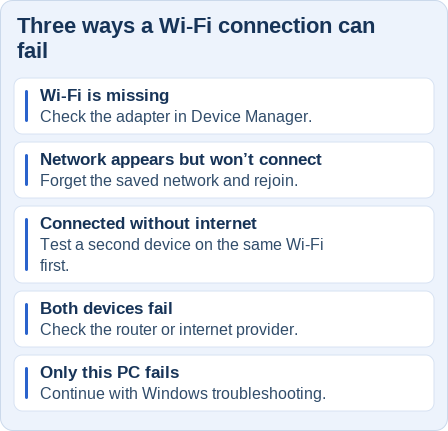
- Right-click Start and select Device Manager. Expand Network adapters and look for the wireless adapter.
- Open the adapter’s Properties to check its status. If it’s disabled and you’re authorized to enable it, use Enable device. If Windows shows an error code, write down the full message.
- If Windows can’t find a working driver, use a connected device to save the official driver for the exact PC or adapter model before removing anything from the offline PC.
If you can see the network but can’t join
Have the Wi-Fi password handy. Forgetting the network removes the saved connection details, so you’ll need to enter them again.
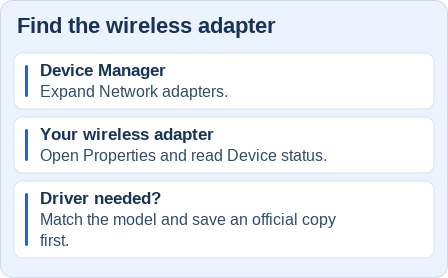
- Open Settings → Network & internet → Wi-Fi → Manage known networks.
- Find the network and choose Forget. Open the Wi-Fi list again, select the same network, and reconnect.
- If it still fails on Windows 11, run the Network and Internet troubleshooter in Get Help. Retry the same network and note the exact message if it fails again.
If you’re connected but have no internet
Try opening a site on another device connected to the same Wi-Fi. On a phone, make sure the test uses Wi-Fi instead of cellular data.
- If the second device also can’t get online, check the router or internet provider. Follow your router maker’s restart instructions if you manage the equipment. A restart will briefly disconnect other users.
- If the second device gets online, continue on the Windows PC. Run the Network and Internet troubleshooter in Get Help on Windows 11, then retest the original site or app.
- If the PC fails on more than one working Wi-Fi network, record the adapter name, driver version, and error before contacting the PC maker or your IT team.
Use Network reset only after the other checks
Network reset removes installed network adapters and their settings. After a restart Windows reinstalls the adapters with default settings. You may need to set up a VPN or virtual network switches again, and Windows may change known connections to a public profile.
On a work or school PC, check with IT before resetting. On Windows 11, save your work and have your Wi-Fi password available. Open Settings → Network & internet → Advanced network settings → Network reset. After restarting, reconnect and retry the site or app that originally failed.